Getting accurate information about a computer or laptop’s hardware through PowerShell makes it easy to identify serial numbers, models, and component specifications without installing third-party software.
Using built-in operating system cmdlets provides reliable data for hardware inventory, warranty checks, or upgrade planning. In this guide, I cover the key CIM classes that can extract detailed technical information from each component of your system without lengthy manual searches.
- Related material: Windows Network Diagnostics: CMD and PowerShell
PowerShell is a powerful Microsoft command shell and scripting language for automating tasks and managing systems. The easiest way to find it is through the Start menu search (press the Win key) and simply type “PowerShell.”
If it is not installed (which is unlikely) or you are using an older version, you can get the x64 version from the official website:
- Section “MSI package installation”: https://learn.microsoft.com/ru-ru/powershell/scripting/install/install-powershell-on-windows?view=powershell-7.6#msi
Basic System Information (Model, BIOS, and Motherboard)
The motherboard is the foundation of any computing system, while core platform information is stored in the BIOS.
Knowing the exact device model and serial number is essential when contacting the manufacturer’s technical support or looking for compatible drivers. This is especially important in corporate environments, where hardware is tracked using unique device identifiers.
PowerShell provides the Win32_ComputerSystem class for a general overview of the platform and Win32_BIOS for targeted BIOS information. These classes access the Windows management interface directly and retrieve physical parameters recorded by the manufacturer. On laptops and branded workstations, this is also where the service tag required by vendors is typically stored.
When working with desktop motherboards, manufacturers often do not expose the board revision clearly, but it can be retrieved through Win32_BaseBoard. The following basic commands provide the foundation for a hardware audit.
Get-CimInstance Win32_ComputerSystem | Select-Object Manufacturer, Model, SystemTypeThis command retrieves the manufacturer, specific PC or laptop model, and platform architecture. The output immediately helps classify the device and identify its basic hardware family.
Get-CimInstance Win32_BIOS | Select-Object Manufacturer, SMBIOSBIOSVersion, SerialNumberThis query reads data directly from the BIOS, displaying the installed firmware version and the device’s unique serial number. The serial number is required to check the current warranty status on the manufacturer’s official website.
Get-CimInstance Win32_BaseBoard | Format-List Manufacturer, Product, SerialNumber, VersionThis displays the exact motherboard model (Part Number), hardware revision, and built-in serial number. List formatting makes long string values easier to read, which is especially useful with server motherboards.
Computing Performance Analysis (CPU and RAM)
System performance assessment starts with the central processor and memory subsystem.
When planning a RAM upgrade, you need to know exactly how many slots are occupied, the modules’ clock speed, and their manufacturer to avoid hardware conflicts. Collecting this information through the console eliminates the need to physically open the computer.
For the CPU, the key metrics beyond the commercial model name include the number of physical cores, logical processors, and maximum clock speed. The Win32_Processor class provides a detailed CPU summary by querying the motherboard’s management interface. In hybrid systems or multi-processor servers, the command returns separate data for each installed processor.
System memory is queried through the Win32_PhysicalMemory class, allowing you to inspect every installed module individually. This is an effective way to identify the part number of a specific RAM module when purchasing an identical replacement and maintaining proper dual-channel operation.
For example:
Get-CimInstance Win32_Processor | Select-Object Name, NumberOfCores, NumberOfLogicalProcessors, MaxClockSpeedThe command returns the processor’s full commercial name, the number of physical cores and logical threads, and the maximum clock speed. These technical metrics provide an objective view of the system’s baseline computing capacity.
The result on my work laptop:

Get-CimInstance Win32_PhysicalMemory | Select-Object Manufacturer, PartNumber, Capacity, SpeedThis queries each installed RAM module separately, showing its capacity in bytes, effective operating speed, and manufacturer part number. The query is especially useful when looking for a fully compatible memory module for a safe upgrade.
Result:

Beyond basic clock speed and core counts, the CPU exposes many low-level characteristics that can be important for specific workloads.
The Win32_Processor class contains detailed information about the chip’s architecture, including different cache levels that directly affect processing large data sets. Extracting L2CacheSize and L3CacheSize can help assess whether a server is suitable for databases or demanding workloads where fast on-chip memory capacity can be important.
Another important aspect of hardware diagnostics is checking hardware virtualization support and identifying the physical processor socket on the motherboard.
The VirtualizationFirmwareEnabled property lets you remotely verify whether hypervisor support is enabled at the system firmware level, which is required for running containers and virtual machines. At the same time, SocketDesignation provides the exact socket designation (for example, LGA 1700 or AM5), eliminating the need to look up the current platform specifications before ordering another processor.
For strict corporate inventory, tying expensive licenses to specific hardware, or investigating security incidents, a unique processor identifier can also be used. The ProcessorId property returns a hardware hash embedded by the manufacturer that remains unchanged throughout the device’s service life.
All of these extended metrics can be retrieved in a single targeted query:
Get-CimInstance Win32_Processor | Select-Object Name, SocketDesignation, L2CacheSize, L3CacheSize, VirtualizationFirmwareEnabled, ProcessorIdRAM diagnostics also involve much more than simply identifying the installed capacity or effective speed.
The Win32_PhysicalMemory class can reveal the physical layout of installed modules, including the exact alphanumeric designation of each populated slot. The DeviceLocator and BankLabel properties show which motherboard channels contain the memory, which is important when remotely identifying installation errors or incorrect channel population.
Determining the memory generation and whether hardware error correction (ECC) is present is a key part of auditing workstations and entry-level servers.
The SMBIOSMemoryType property returns a numeric code tied directly to the JEDEC standard, allowing you to distinguish, for example, DDR4 from DDR5 without opening the case. Comparing DataWidth with TotalWidth also indicates whether ECC memory is supported: when the total bus width exceeds the data width (typically 72 bits versus 64), the module contains additional chips for on-the-fly bit error correction.
Use the following command to retrieve these specifications and the configured memory voltage:
Get-CimInstance Win32_PhysicalMemory | Select-Object BankLabel, DeviceLocator, SMBIOSMemoryType, DataWidth, ConfiguredVoltageA critical step when planning additional computing capacity is checking the maximum limits supported by the memory controller and motherboard.
To retrieve this information, use the auxiliary Win32_PhysicalMemoryArray class, which describes the entire logical memory array rather than individual modules.
This query returns the MaxCapacity property, which indicates the maximum RAM capacity supported by the hardware platform, and MemoryDevices, which shows the total number of physical memory slots on the board:
Get-CimInstance Win32_PhysicalMemoryArray | Select-Object MaxCapacity, MemoryDevicesFor complex hardware inventory scripts, it is useful to consolidate all of the low-level properties covered above into a single technical reference.
For convenience, I compiled a summary matrix that makes it easier to navigate CIM class syntax and extract only the information needed to build a detailed hardware profile. The table below groups the advanced hardware metrics, their corresponding Windows system classes, and their practical meaning for an engineer:
| Component | PowerShell Class | Property | Practical Meaning |
|---|---|---|---|
| CPU | Win32_Processor |
SocketDesignation |
Exact motherboard socket type for the processor (for example, AM4, LGA1200). |
| CPU | Win32_Processor |
L3CacheSize |
Factory-installed L3 cache capacity, important for demanding computations. |
| CPU | Win32_Processor |
VirtualizationFirmwareEnabled |
Status of hardware virtualization at the BIOS firmware level. |
| RAM | Win32_PhysicalMemory |
DeviceLocator / BankLabel |
Exact physical location of a specific memory module in a motherboard slot. |
| RAM | Win32_PhysicalMemory |
ConfiguredVoltage |
Current operating voltage of the module, useful when matching an identical pair. |
| RAM | Win32_PhysicalMemoryArray |
MaxCapacity |
Hardware limit for the system’s total RAM expansion. |
Storage and Graphics Subsystem Diagnostics
Storage devices and graphics adapters are among the components most often replaced or monitored for technical issues.
Identifying the exact SSD model helps with timely controller firmware updates and can help prevent data loss. For graphics adapters, knowing the exact GPU revision is important when deploying the correct driver package.
The built-in Win32_DiskDrive class can retrieve serial numbers for solid-state drives and traditional hard disks. The class ignores logical partitions and focuses on the physical hardware, showing the actual number of devices connected to the motherboard’s ports.
The graphics subsystem is queried through Win32_VideoController, which collects technical information for both discrete and integrated graphics adapters. The query displays the available video memory and the current graphics driver version installed in the operating system.
For example:
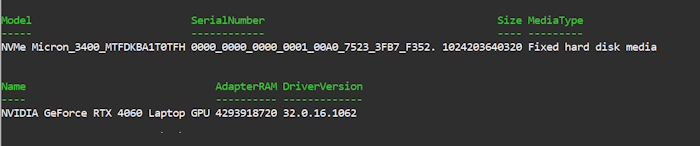
Get-CimInstance Win32_DiskDrive | Select-Object Model, SerialNumber, Size, MediaTypeThis identifies all connected physical storage devices, returning their manufacturer names, serial numbers, and total unallocated capacity. The output makes it easy to distinguish a fast system SSD from a high-capacity hard drive used for file storage.
Get-CimInstance Win32_VideoController | Select-Object Name, AdapterRAM, DriverVersionThis identifies installed graphics adapters, the amount of dedicated video memory, and the driver version in use. When a laptop uses both integrated and discrete graphics, the console returns technical information for both adapters.
Here is an example from my work laptop showing the output of both commands above:
Let’s return to the graphics adapter and its parameters. What other GPU information can you “pull” with PowerShell?
For example, the Win32_VideoController class stores a large amount of graphics subsystem data that goes far beyond the commercial product name and basic memory capacity. PowerShell can provide a detailed technical report including driver information, hardware identifiers, and the current display output settings.
To request every available graphics adapter property without filtering, use full-list output.
This command displays dozens of otherwise hidden controller fields:
Get-CimInstance Win32_VideoController | Format-List *Here is a partial screenshot of the results from my work laptop:

For targeted hardware audits, inventory, or display troubleshooting, specific properties can be selected. The following categories cover additional graphics adapter data that can be extracted:
- Chip identification: exact name and architecture of the graphics processor installed on the board.
- Driver information: exact software build date, which helps identify outdated systems.
- Hardware codes: Plug and Play system identifiers containing Vendor ID and Device ID (critical for finding drivers for unidentified devices).
- Display parameters: current resolution, refresh rate, and color depth.
- Status: device operating status as reported by Windows.
Specific metrics can be retrieved through filtering. The table below lists the exact CIM property names used to build targeted queries:
| Property | Data Retrieved |
VideoProcessor |
Internal engineering name of the graphics chip. |
DriverDate |
Compilation date of the installed driver. |
PNPDeviceID |
Hardware identifier string (contains VEN_xxxx and DEV_xxxx codes). |
Status |
System-level device status (normally returns “OK”). |
CurrentHorizontalResolution |
Current horizontal resolution of the primary monitor in pixels. |
CurrentVerticalResolution |
Current vertical resolution of the primary monitor in pixels. |
CurrentRefreshRate |
Current refresh rate of the connected display in Hz. |
VideoModeDescription |
Ready-made text summary of the video mode (for example, “1920 x 1080 x 4294967296 colors”). |
The ready-to-use command for generating a detailed technical report on the graphics accelerator and its drivers is:
Get-CimInstance Win32_VideoController | Select-Object Name, VideoProcessor, DriverVersion, DriverDate, PNPDeviceID, StatusAnd here is the result:

When the main goal is to determine the current display output settings, such as remotely checking whether a user’s resolution has changed, the query focuses on refresh and resolution parameters:
Get-CimInstance Win32_VideoController | Select-Object Name, CurrentHorizontalResolution, CurrentVerticalResolution, CurrentRefreshRate, VideoModeDescriptionNetwork Hardware and Power Parameters
Network interfaces and power controllers require particular attention when administering fleets of portable devices.
A unique hardware MAC address is needed for static routing, corporate firewall rules, or Wake-on-LAN configuration. On laptops, this is accompanied by the need to monitor the condition of the built-in battery.
Modern PowerShell versions provide the Get-NetAdapter cmdlet, which presents network data in a much cleaner format than older WMI classes. It automatically filters out many hidden virtual interfaces, software bridges, and tunnels, keeping the system engineer focused on physical network controllers.
Laptop batteries can be diagnosed through the separate Win32_Battery class, which exposes estimated capacity and charge status. Comparing the rated capacity with the actual charge level provides a reasonably accurate way to assess physical degradation of lithium cells without using vendor-specific service utilities.
Get-NetAdapter | Select-Object Name, InterfaceDescription, MacAddress, LinkSpeedThis specialized cmdlet lists active network interfaces, their physical MAC addresses, and current link speed. It removes the need to manually filter virtual system adapters and focuses on the physical hardware.
Get-CimInstance Win32_Battery | Select-Object Name, BatteryStatus, EstimatedChargeRemaining, DesignCapacityThis reads data from the laptop battery controller, showing the device identifier, remaining charge percentage, and factory capacity. Analyzing these values provides a detailed picture of the battery’s current technical condition.
Data Organization and Output Formats
The collected hardware information needs to be structured correctly for further analysis or automated transfer into corporate asset management systems. PowerShell includes a built-in processing pipeline that can filter the required hardware properties and immediately convert them into the required text format, eliminating manual console-output processing.
Engineers most often export results to tables, delimiter-based files, or universal structured objects. The appropriate format depends on the use case: whether the final report will be read by a specialist on screen or passed as a machine-readable log to another program.
The following PowerShell export formats are among the most useful for preserving inventory results in ready-to-use form:
- CSV — a delimited tabular format that is ideal for bulk importing collected data into Excel or a relational database.
- JSON — a hierarchical format that can be easily parsed by modern web services, monitoring systems, and third-party APIs.
- HTML — can generate finished visual web reports for management directly from the shell script.
To run inventory commands successfully on target machines, the execution environment must be initialized in the correct order. The preparation sequence for collecting hardware information without access issues is as follows:
- Open the Windows system menu and find the PowerShell application using the built-in search field.
- Right-click the program icon and select the option to run it as administrator.
- Confirm the User Account Control prompt so the shell can access protected system hardware classes.
WMI/CIM Class Reference Table
There is no need to memorize every system call. A specialist only needs to understand the general naming logic and purpose of each class. The Common Information Model provides a standardized way to describe physical PC components. Using CIM cmdlets instead of legacy WMI queries provides faster script execution and more standardized output.
The following matrix summarizes the relationship between hardware components and the software classes used to diagnose them. It serves as a practical reference when writing automated audit scripts. The parameters were tested on current versions of Windows desktop operating systems.
The reference table includes only hardware classes that consistently return usable hardware data on machines without requiring additional vendor-specific drivers.
| PC / Laptop Component | CIM Class (PowerShell) | Key Retrievable Parameters |
| Desktop PC / Laptop | Win32_ComputerSystem |
Manufacturer, Model, SystemType, TotalPhysicalMemory |
| Motherboard | Win32_BaseBoard |
Manufacturer, Product, SerialNumber, Version |
| BIOS / UEFI | Win32_BIOS |
Manufacturer, SMBIOSBIOSVersion, SerialNumber, ReleaseDate |
| Processor (CPU) | Win32_Processor |
Name, NumberOfCores, NumberOfLogicalProcessors, MaxClockSpeed |
| RAM | Win32_PhysicalMemory |
Manufacturer, PartNumber, Capacity, Speed, FormFactor |
| Storage Drives (HDD/SSD) | Win32_DiskDrive |
Model, SerialNumber, Size, InterfaceType, MediaType |
| Graphics Card (GPU) | Win32_VideoController |
Name, AdapterRAM, DriverVersion, VideoProcessor |
| Battery | Win32_Battery |
Name, DesignCapacity, FullChargeCapacity, EstimatedChargeRemaining |

I’m Irina Petrova-Levin, a graduate of the Moscow Technical University of Communications and Informatics (MTUCI), where I earned my degree in Information Technology. My professional journey has been deeply rooted in JavaScript, PHP, and Python, driven by a profound fascination with how modern technology shapes our everyday lives. I strive to explain complex processes in a clear and accessible way without ever sacrificing accuracy or missing the core of the matter.
Now based in Dallas since 2019, my work reflects a unique synthesis of Eastern European engineering depth and the dynamic American tech mindset. This blend allows me to bridge two distinct technological traditions.
My goal is to deconstruct the real mechanisms behind the devices and systems we use daily. In my articles, I aim to deliver information that is not only practical and structured but also reveals the hidden logic of how our world actually works.