Network diagnostics in Windows 11 through CMD and PowerShell is a fast way to understand exactly where the problem is happening: on your side, at the router level, or already outside your network, all the way to the game server. Understanding basic commands like ping, tracert, curl, and ipconfig lets you pinpoint the source of lag, packet loss, and instability in just a few minutes. That matters especially in online games, where a delay of just a few dozen milliseconds already feels like a problem.
CMD in Windows is the built-in command line used to run system commands, automate routine tasks, and diagnose network issues quickly. In Windows 11, the main change is not cmd.exe itself, but the fact that console apps now open inside Windows Terminal by default, which means tabs and a more comfortable interface; at the same time, the basic Windows commands are still available and remain useful for administration and connection troubleshooting.
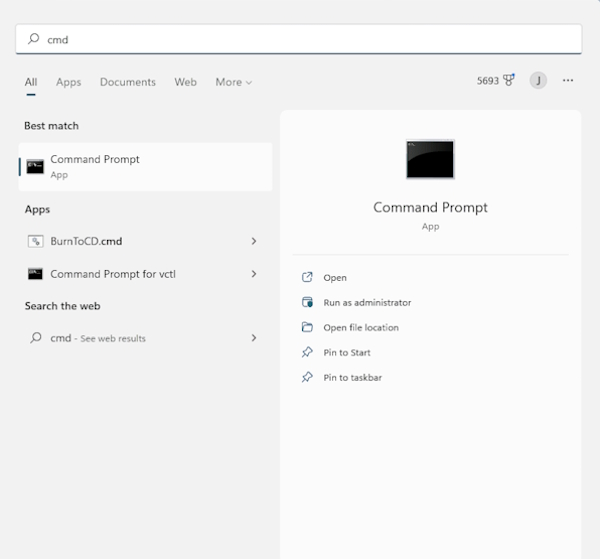
In Windows 10 and Windows 11, CMD can be opened through Start menu search by typing cmd or “Command Prompt,” or by using Win + R, entering cmd, and pressing Enter.
Running as administrator gives you elevated privileges for system-level operations such as managing network settings, changing protected files, and running commands that require higher permissions, which is especially important for network diagnostics and fixing system errors (right-click — Run as administrator).
How basic network diagnostics work before the modem
The first thing to understand is that all diagnostics follow the principle of “from near to far.”
First, check the local network
Then, check internet access
And only after that — the specific server
This order lets you avoid guessing and identify exactly where the failure is happening. It saves time and immediately shows whether the problem is in your connection, with your ISP, or already on the remote service side.
You should always start by checking the network configuration.
For example, this CMD command shows the IP address, gateway, and DNS:
ipconfig /all
If you see an address like 169.254.x.x, it means the computer did not receive an IP from the router at all, and testing the internet any further is pointless.
If the IP and gateway are present, then the local network is working and you can move to the next step. This is exactly where basic issues like DHCP failures or Wi-Fi problems are often found.
Checking connection to the router with ping
The next step is to check the connection to the router itself.
Usually this is an address like 192.168.0.1, 192.168.10.1, or 192.168.1.1 — check the sticker on the back of the router.
The command looks like this:
ping 192.168.1.1
Ping sends packets and measures response time and packet loss.
If you see stable values around 1–5 ms with no loss, the local network is working normally. At the same time, it is important to look not only at the average value but also at stability: even rare spikes can already cause micro-stutter in games.
If you see spikes up to 100–500 ms or packet loss, that is almost always a Wi-Fi, cable, or network congestion problem. In real practice, this is the main source of lag in games, not the ISP. The reason is often simple — weak signal, interference, or parallel load such as downloads or streaming.
If there is no response at all, the problem is either in the router or in the network adapter. In that case, it makes sense to immediately test the cable connection and make sure the network interface is active so you can rule out Wi-Fi effects.
If ping to the router is consistently 5–10 ms with rare spikes up to 20 ms (often on Wi-Fi 6 / 5 GHz), that is normal wireless behavior.
By its nature, Wi-Fi does not produce an perfectly flat response like a cable does. Even with a strong signal, small spikes can happen because of airtime competition, background processes, and the behavior of the standard itself. Values in the 5–10 ms range are already a good result for a wireless connection.
The key point is the frequency and pattern of the spikes:
If they are isolated deviations with no packet loss, they will not be noticeable in games or in normal use.
It becomes a problem when ping regularly jumps above 30–50 ms or packet loss appears — then it starts affecting stability.
In practice, this result means the local network is fine, and if there is lag, you almost certainly need to look farther down the line — at the route or the server itself.
Example breakdown
Let’s look at two cases from a real example: ping to the router over WiFi 6 (5G) and the same test using a Cat 6 LAN cable connection.
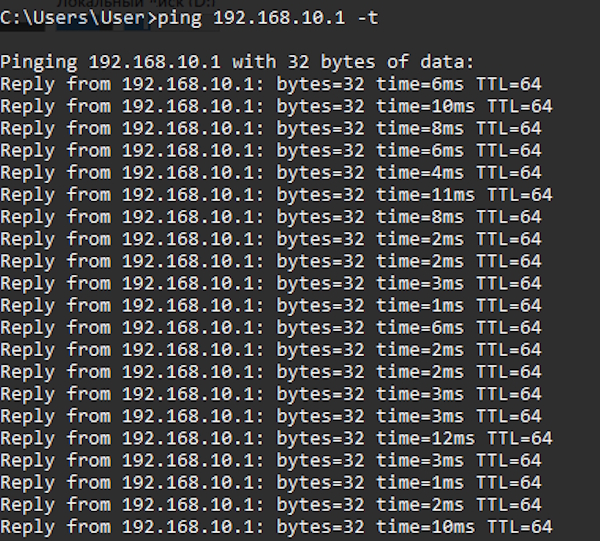
On WiFi 6, the picture looks like this:
On 5 GHz Wi-Fi, this looks normal: the base ping stays around 1–4 ms, but there are occasional spikes to 10–15 ms — typical wireless behavior caused by interference and airtime competition. There is no packet loss, so the connection is stable, but not perfectly flat.
For games, these small spikes can create rare freezes or “jumps,” especially in latency-sensitive moments. It is not a critical problem, but it is no longer a perfectly clean line.
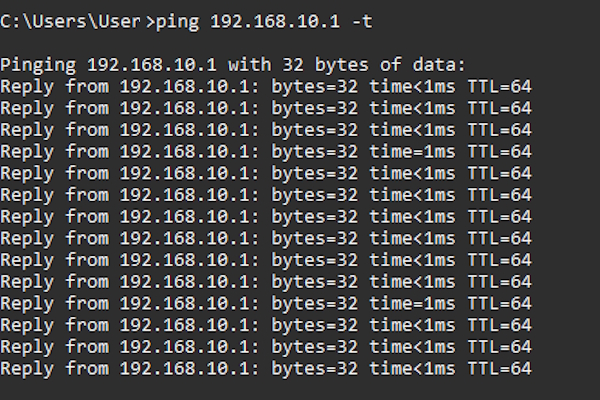
On LAN, everything levels out:
Switching to a LAN cable practically removes these fluctuations: ping becomes a stable 1 ms with no spikes, because interference, Wi-Fi delays, and the influence of other devices on the network disappear.
Checking internet access without DNS
Next, it is important to separate the internet from DNS. For this, use ping to an IP address:
ping 8.8.8.8
If this request goes through, then the internet is working.
If not, the problem is already beyond the router.
Sometimes the connection looks “alive,” but packets to an external IP do not arrive consistently, and that already points to an ISP issue, a routing problem, or a problem at the line level itself.
This is a key test because many people confuse no internet with DNS problems. In practice, you often get a situation where websites will not open, but ping to an IP still works — which means the internet is there, but name resolution is not working. In that case, the problem is no longer the connection itself, but the way the system translates a domain name into an IP address.
In other words, this separates two different problems: connectivity and addressing. The internet can work normally, but without proper DNS you simply cannot “reach” the needed servers by name.
In that case, first try clearing the DNS cache:
ipconfig /flushdns
If that does not help, switch to more stable DNS servers (for example, public ones) and reconnect the network. How to change DNS — see the link at the beginning of the article.
Checking DNS and domain names
Now you can test a domain:
ping google.com
If the IP pings but the domain does not, then the problem is DNS. This is one of the most common causes of unstable internet: the connection exists, but requests do not reach the right address. Sometimes this shows up not as a complete failure, but as delays when first connecting to websites or game servers.
This is usually fixed by changing DNS or clearing the cache:
ipconfig /flushdns
This is a quick way to eliminate strange delays when connecting to servers.
If the problem keeps happening, it makes sense to check which DNS server is being used and temporarily switch to another one — that often stabilizes the connection immediately.
In rare cases, restarting the network adapter or the router helps if the cache or settings get “stuck” at the network level.
tracert — where exactly the delay happens
When the internet seems to be working, but something is slowing down, tracert comes into play:
tracert google.com
This command shows the full path the packet takes to the server, including intermediate hops.
If the delay appears already at the first hops — the problem is on your side or with your ISP.
If it appears closer to the end — the problem is already on the server side or in its infrastructure.
This is especially useful for analyzing game servers, where it is important to understand exactly where the ping starts rising.
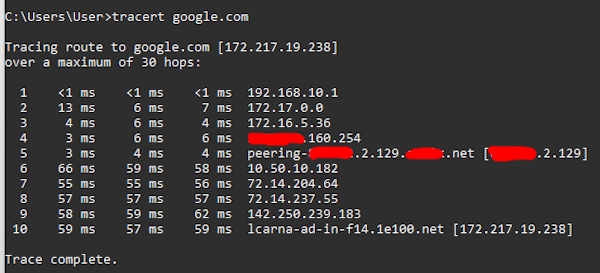
For example. I am currently overseas, outside the United States:
Here you can clearly see the point where latency jumps sharply: already on the 6th hop, ping jumps to 46–55 ms, and then stays around that range. This looks less like a router problem and more like a bottleneck at the ISP, on the backbone, or at a network handoff.
Up to the 5th hop, everything looks normal, which means the local network and the first part of the route are fine.
In a case like this, if you are getting lag in games, you need to look for it not at home, but farther along the route.
curl — checking the server’s real response
In Windows 11, curl is already built in and lets you check not just availability, but the server’s actual response:
Unlike ping, curl works at the HTTP level, meaning it shows real download speed. This is especially useful when the network is technically up, but pages or gaming services open slowly because of issues at the application level or along the route to a specific node.
That matters because ping can be perfect while the real loading speed is slow. That is why curl is often used to check “felt speed,” not just latency.
If there is a response but the speed drops, that is a signal to look at the server, the route, or channel congestion.
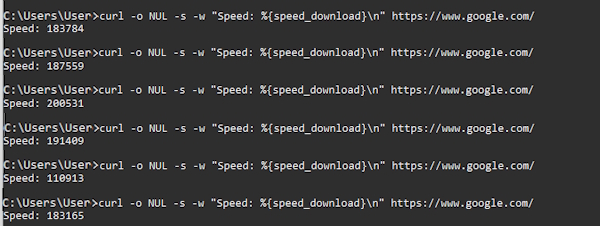
For example:
The speed stays in the ~160–196 KB/s range and gradually levels out — that is a sign of a stable connection without drops.
The spread is minimal, which means there are no packet losses and TCP is working smoothly. But the absolute speed is low, which points to a limitation on the server side or to a small amount of data.
Bottom line: the connection is stable, but the test does not reflect the real throughput of the channel.
For a fairer assessment, it is better to look not at a single measurement, but at the average or median across a series.
How to apply this to game servers
In online games like Diablo 4, Path of Exile 2, or Last Epoch, you are effectively working with a remote server, and all the same principles apply directly. At the same time, you need to keep in mind that many games use different regions and load balancing, so ping can change from one session to the next.
The first step is to find the server IP or at least the domain. Then:
ping server_ip

tracert server_ip
If ping is already high on the first hops — the problem is on your side.
If the spikes come later — it is the route or the server itself. In those cases, sometimes changing the region in the game or reconnecting helps you land on a different route.
Perfect internet does not guarantee stable ping if the route to the server is congested. That is exactly why two players with the same speed can have completely different experiences in the game.
Real-world scenarios from practice
Let’s look at a few scenarios I have seen in real practice.
A common situation is this: ping to the router is stable, ping to 8.8.8.8 is normal, but ping to the game server has spikes. That means the problem is the route, not your network.
Another common case is high ping to the router. In that case, no “internet optimization” will help: the problem is the Wi-Fi or the cable.
A third scenario is normal ping, but the game still lags. Here you need curl or packet analysis (see below in the PowerShell section), because the problem may be bandwidth or buffering.
Another scenario is when all the commands show normal results, but lag appears in only one game. Then the cause may be the server itself, the connection region, or unstable routing specifically to that game cluster.
And finally, a common scenario: ping to the router and to 8.8.8.8 is normal, but the game stutters during peak hours. That often means not a problem in your home, but route congestion or instability on the ISP side at certain times.
PowerShell as an extension of diagnostics
PowerShell is not a replacement for CMD, but its logical evolution.
PowerShell in Windows is a modern command shell and scripting language used for task automation, system management, and deep diagnostics. Unlike CMD, it works with objects instead of plain text, which makes it a more flexible and powerful tool for administration and network analysis; in Windows 11, the key difference is not “new CMD commands,” but the evolution of the environment itself: PowerShell has become the standard management tool, gotten better integration with Windows Terminal, more convenient output, and expanded capabilities for working with networks, processes, and system parameters.
Many commands here are either more convenient or provide more data.
For example, instead of ping you can use:
Test-Connection google.com
It does the same thing, but it can work with multiple hosts right away, return statistics, and run in a loop. In real practice, that is more convenient when you need to track instability rather than a one-time response.
Test-NetConnection — one of the most useful tools
This is already a more serious level of diagnostics.
The command checks not just whether a host is reachable, but a specific port:
Test-NetConnection google.com -Port 443
This is critical for games and services where it may not be the whole server that is blocked, but only the port you need.
For example, if the game will not connect but the website works — the problem is often right here. This command immediately shows whether the port is open, whether there is a route, and which IP is being used.
If the port is closed, that means the connection is being blocked at the network, server, or ISP level, and then it makes sense to check routing or security settings.
Checking the route and delays deeper than tracert
PowerShell has this command:
Test-NetConnection google.com -TraceRoute
It performs a tracert-like check, but in a more convenient form. You can immediately see the IP, route, and delays without unnecessary “noise.”
That is useful if you are analyzing the route to a game server and want to quickly understand where the delay appears. It is also important to look at the stability of each hop: if one of the nodes shows sharp spikes, that is usually where the bottleneck or network congestion is.
Resolve-DnsName — a proper DNS check
Resolve-DnsName — a proper DNS check
Instead of ping google.com, you can use:
Resolve-DnsName google.com
This command performs a DNS query and shows which IP is returned for the name, and if needed you can specify a particular DNS server with -Server to compare how different resolvers behave. That is more precise than just checking whether a site pings: it shows the name-resolution step itself.
If you have strange lag or the game connects to the wrong place, the problem is often here. For a quick check, you can also compare the answer from your current DNS with another server — that immediately shows where the failure or delay is happening.
Get-NetAdapter and Get-NetIPConfiguration
These commands give you full information about network interfaces:
Get-NetAdapter
Get-NetIPConfiguration
They show adapter status, link speed, connection type (Wi-Fi or Ethernet), as well as IP addresses, gateway, and DNS. That is useful for quickly understanding whether the adapter is running at a lower speed or has lost its network connection.
You can also check the status through Status and LinkSpeed — if the link drops or the speed is lower than expected, that often points to a problem with the cable, the driver, or the Wi-Fi connection.
Checking open connections
If you suspect that a game or program is behaving strangely:
Get-NetTCPConnection
This shows all active TCP connections. You can see which IPs the system is connecting to, which ports are being used, and the connection state (Established, TimeWait, and so on).
You can also filter by port or process to quickly find a specific application: that helps identify extra connections, stuck connections, or unexpected traffic that may affect latency and stability.
How to apply this to game servers
The logic is the same as in CMD, but more precise. For example (server_ip – the game server’s IP address):
If ping is normal but the port is closed — the problem is not the internet, but access to the server or a block at the network/firewall level.
If the route starts showing delays or packet loss already at intermediate hops — that points to routing problems or overloaded ISP nodes.
It is also useful to check response time and stability (packet loss) over time — those are what most often cause stutters and lag in games, even when the connection looks good on paper.
What is actually useful in the end
In short, the minimum set for proper diagnostics in Windows 11 is:
CMD:
ping
tracert
ipconfig
curl
The main mistake is checking only “do I have internet or not.” In practice, you need to test each level separately: device, router, internet, route, and server.
CMD in Windows 11 gives you all the tools for that without installing third-party software. And if you use them step by step, you can determine exactly where the problem is in 2–3 minutes.
That is what separates random guesses from proper network diagnostics: you do not assume — you see the chain and find the weak link.
PowerShell:
Test-Connection
Test-NetConnection
Resolve-DnsName
CMD covers the basics. PowerShell gives you control and precision.
And if you use them together, you can diagnose almost any network problem without third-party tools.
How to determine the IP address of a game server
Let’s look at our favorite Diablo 4.
Determining Diablo IV server IPs directly is difficult because the game uses distributed infrastructure and dynamic addresses. But you can catch the active connection through PowerShell: run Get-NetTCPConnection, then filter by the game process (diablo4.exe) — that will show the current external IPs the client is connected to while playing.
Then you can check those IPs with Test-NetConnection <IP> or tracert <IP> to see the route and delays.
Important for Diablo 4: addresses can change during a session, so it is better to analyze them while the connection is active, when the game is already in a match or in the game world.
I’m Irina Petrova-Levin, a graduate of the Moscow Technical University of Communications and Informatics (MTUCI), where I earned my degree in Information Technology. My professional journey has been deeply rooted in JavaScript, PHP, and Python, driven by a profound fascination with how modern technology shapes our everyday lives. I strive to explain complex processes in a clear and accessible way without ever sacrificing accuracy or missing the core of the matter.
Now based in Dallas since 2019, my work reflects a unique synthesis of Eastern European engineering depth and the dynamic American tech mindset. This blend allows me to bridge two distinct technological traditions.
My goal is to deconstruct the real mechanisms behind the devices and systems we use daily. In my articles, I aim to deliver information that is not only practical and structured but also reveals the hidden logic of how our world actually works.