USB flash drives have long been an essential tool for storing and transferring data, but few people realize the complex technological journey behind these compact devices. From the first models with capacities measured in single-digit megabytes to today’s high-speed drives capable of handling ultra-high-resolution video, the evolution of the USB flash drive is closely tied to advances in semiconductor technology and data transfer interfaces.
Knowing the history, formats, and speed characteristics helps you make an informed choice when buying a drive for specific tasks.
The History of USB Flash Drives and Why They Emerged
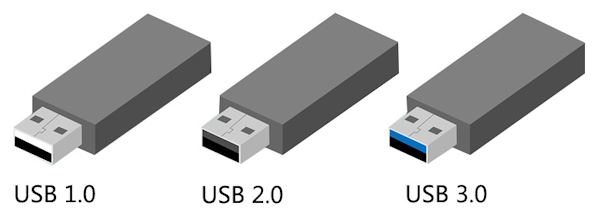
The foundation for the USB flash drive was flash memory technology, invented by Fujio Masuoka in the early 1980s. This memory, which uses floating-gate transistors, could store data without constant power and quickly became the basis for portable storage devices. However, the commercial realization of a compact drive with a USB interface came much later, when there was an urgent need to replace inconvenient and low-capacity floppy disks.
In 1999, several companies staked their claims to the invention of the USB flash drive. Israeli company M-Systems filed a patent application for a “PC flash disk architecture based on a universal serial bus,” while Singapore’s Trek 2000 International began selling a device called the Thumbdrive. In 2000, IBM introduced the DiskOnKey to the North American market, developed by M-Systems, with a capacity of 8 megabytes, positioning it as a full-fledged floppy disk replacement. It was the combination of mature flash memory technology, the spread of USB ports on computers, and the need for a more reliable, higher-capacity medium that led to the rapid global adoption of these devices.
Operating System Support, Formats, and Drive Capacities
Starting with Windows 98, users needed to install special drivers to work with USB drives, but basic support appeared in Windows Me and 2000.
The real breakthrough came with Windows XP, which, along with modern Linux versions (kernel 2.4 and higher) and macOS, provides full support for the USB mass storage device class, allowing drives to work without installing additional software. This made flash drives a truly universal cross-platform solution.
Choosing a file system for a USB drive depends directly on your tasks and the operating systems you use.
-
FAT32 offers maximum compatibility with any device but has a critical limitation: the maximum individual file size cannot exceed 4 gigabytes, and the maximum volume size is limited to 32 gigabytes when formatted with standard Windows tools.
-
For working with larger files, such as disk images or high-resolution movies, exFAT becomes the optimal choice. This file system has no file size limits and is supported by modern versions of Windows and macOS, as well as gaming consoles. NTFS, while supporting large volumes, may not be fully compatible with macOS and some multimedia devices.
NTFS, developed by Microsoft for Windows NT, offers advanced features compared to FAT32 and exFAT: support for access permissions, encryption, file compression, and journaling, which improves reliability during system failures.
-
However, these features are rarely needed on USB drives. Its main advantage is the ability to store files larger than 4 gigabytes and work with volumes of virtually any size.
-
The main drawback of NTFS is that macOS can only read such disks by default; it cannot write to them without special software.
-
Additionally, many multimedia devices, TVs, and gaming consoles may not recognize NTFS or may work with it unreliably.
Therefore, NTFS only makes sense if the drive will be used exclusively with Windows, if you need access control, or if you require the high reliability of a journaling system. For universal use across different platforms, exFAT is the better choice.
All USB Flash Drive Formats from the First to Modern Ones
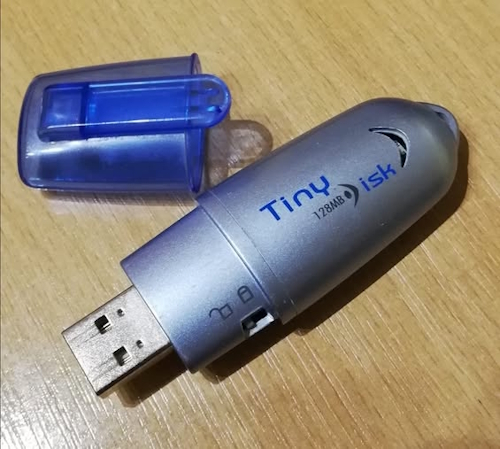
The first generation of USB drives used the USB 1.1 interface, with a theoretical speed of 12 megabits per second, which in practice delivered about 1.5 megabytes per second. These devices, appearing in the early 2000s, had capacities ranging from 8 to 256 megabytes and initially sometimes required separate batteries for power, as the voltage from the USB port wasn’t always sufficient for stable operation. Despite their modest specs, they were a true revolution, offering speed and reliability that floppy disks couldn’t match.
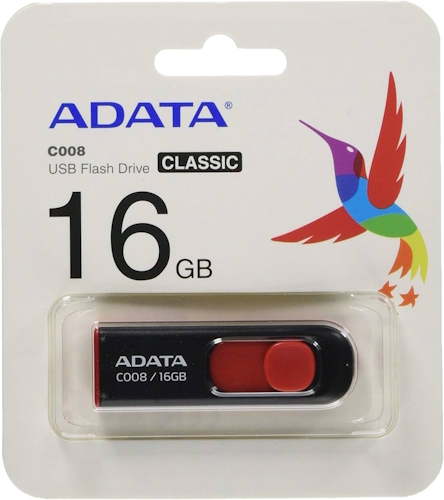
With the arrival of the USB 2.0 standard in 2002, transfer speeds increased to 480 megabits per second, although real-world performance was limited by flash memory controllers and rarely exceeded 30–35 megabytes per second. This standard cemented the widespread use of flash drives, and capacities reached several gigabytes.
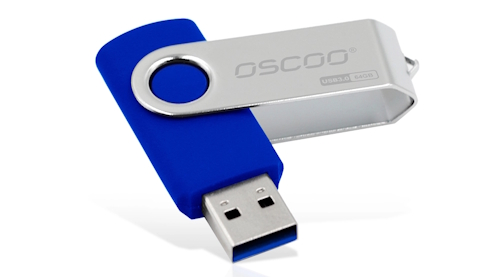
The introduction of USB 3.0, later renamed USB 3.2 Gen 1, occurred around 2010 and boosted bandwidth to 5 gigabits per second, delivering about 400 megabytes per second in real-world conditions.
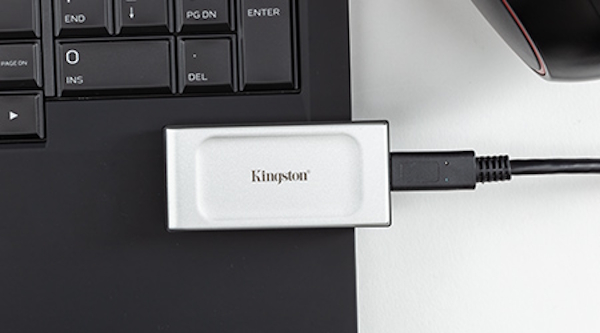
Further development led to USB 3.2 Gen 2 with a theoretical speed of 10 gigabits per second and USB 3.2 Gen 2×2, which uses two lanes to achieve 20 gigabits per second.
The current stage of evolution is represented by the USB4 standard, which provides a theoretical bandwidth of up to 40 gigabits per second, equivalent to nearly 5 gigabytes per second. This interface exclusively uses USB-C connectors and supports advanced protocols, including Thunderbolt 4. USB4 drives available in 2026 can achieve real-world read speeds around 3800–4000 megabytes per second, making them a viable alternative to internal SSDs for working with 4K, 8K video, and other demanding tasks.
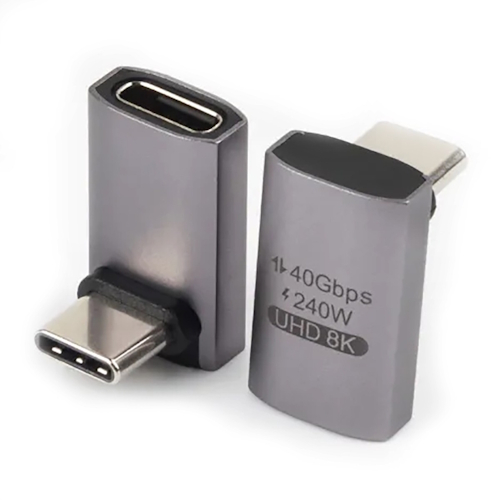
Originally, USB4 existed only with the USB-C connector, and that is the proper USB4 flash drive.
-
The standard was developed specifically for this compact, reversible connector because achieving speeds up to 40 Gbps requires dual-lane data transfer and a greater number of pins, which is physically impossible to implement in the older USB Type-A connectors.
-
So, if you saw a device claiming USB4 support in the past, it was always equipped with a USB-C port, and achieving maximum speed required the appropriate cable.
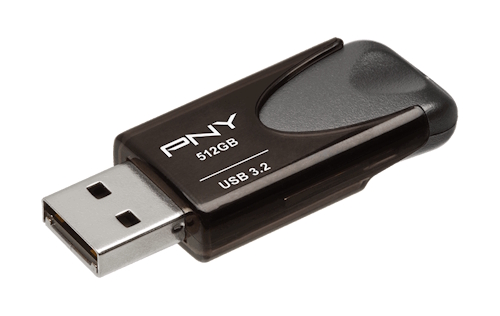
But things have changed (see the example in the photo above). Drive manufacturers found a technical solution that allows them to put modern high-speed controllers into enclosures with the traditional USB-A connector. These drives use a controller compatible with the USB4 protocol, but the physical connector remains USB-A. When plugged into a USB4 port, such a drive will work, but its speed will be limited by the connector’s capabilities and the data lines it uses — typically this means USB 3.2 Gen 1 (5 Gbps) or USB 3.2 Gen 2 (10 Gbps). These drives cannot achieve the full USB4 speed (40 Gbps), as that requires a USB-C connector and a compatible cable.
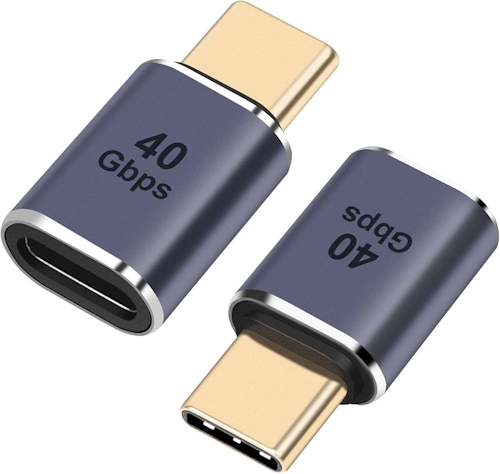
So, what does this mean? The “USB 4.0” label on a drive with a USB-A connector means the device uses a modern controller, but the actual speed will be determined by the connector’s and the interface’s capabilities.
Keep in mind that the traditional “big” USB-A connectors are a thing of the past and only support earlier standards (up to USB 3.2).
For a clear comparison, here is SB Generations Comparison Table:
| Standard | Max Speed (Theoretical) | Year Introduced | Typical Connector | Notes |
|---|---|---|---|---|
| USB 1.1 | 12 Mbps (1.5 MB/s) | 1998 | USB-A, USB-B | First mainstream standard, replaced serial ports. |
| USB 2.0 | 480 Mbps (60 MB/s) | 2000 | USB-A, USB-B, Mini, Micro | Real speed limited to ~35 MB/s by controllers. |
| USB 3.0 | 5 Gbps (500 MB/s) | 2008 | USB-A (blue), USB-B, Micro-B | Real speed ~400 MB/s; later renamed USB 3.2 Gen 1. |
| USB 3.2 Gen 1 | 5 Gbps | 2013 | USB-A, USB-C | Same as USB 3.0, new name. |
| USB 3.2 Gen 2 | 10 Gbps (1250 MB/s) | 2013 | USB-C, USB-A (rare) | Uses one lane; real speed up to 900 MB/s. |
| USB 3.2 Gen 2×2 | 20 Gbps (2500 MB/s) | 2017 | USB-C | Uses two 10 Gbps lanes; requires USB-C and host support. |
| USB4 | 40 Gbps (5000 MB/s) | 2019 | USB-C | Based on Thunderbolt 3; backward compatible. |
USB 4.1 and 5.0
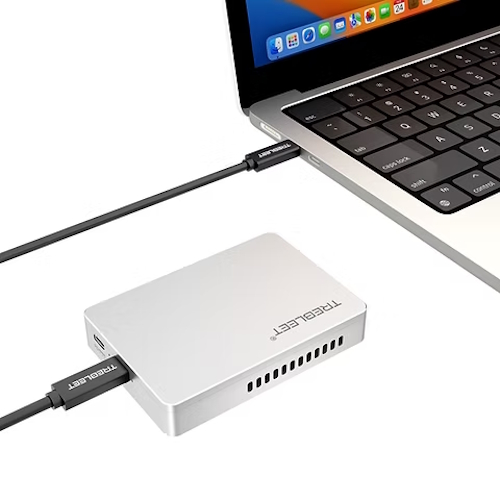
As of today, there are no official specifications for USB 4.1 or USB 5.0.
The latest officially approved and published standard is USB4 Version 2.0, announced back in 2022, with its final specification released in 2025. This standard, often marketed as USB4 80Gbps, doubles the maximum bandwidth to 80 Gbps and uses a new PAM-3 signal encoding scheme. In asymmetric mode, it can reach up to 120 Gbps in one direction, which is critical for powering ultra-high-resolution displays. Besides speed, USB4 v2.0 includes support for DisplayPort 2.1, enabling 8K and 16K video transmission, and standardizes power delivery up to 240W (EPR).
Regarding the future, the term “USB 5.0” sometimes appears in industry discussions and media, but it is not official.
The real prospects are tied to the adoption of the existing USB4 v2.0 standard. Mass-market consumer devices supporting it are expected to appear by late 2026 or early 2027, especially on platforms not using Intel or Apple chips. In parallel, the Thunderbolt 5 standard is evolving. It is closely related to USB4 v2.0 and offers similar or superior features (like PCIe 5.0 support), which could lay the groundwork for future USB iterations. However, specifications labeled 4.1 or 5.0 are still a long way off.
USB Port Colors and Their Meaning
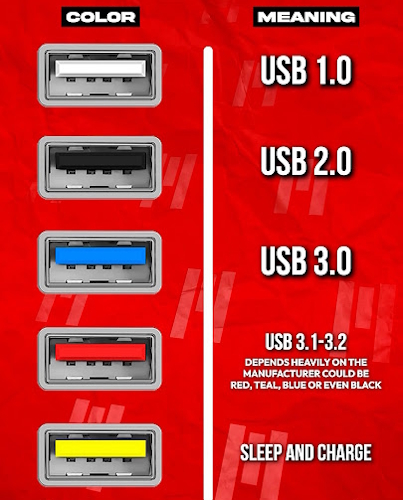
USB Type-A ports (the classic rectangular ones) often use a color-coding system to help users quickly identify their version, speed, and special features. This isn’t a rigid, enforced standard, but rather a widely adopted industry practice encouraged by the USB Implementers Forum (USB-IF).
Here’s a breakdown of what the different colors typically signify:
- White: These ports indicate the USB 1.x standard. They are the oldest generation, offering data transfer speeds between 1.5 and 12 Mbps, and are essentially obsolete in modern computers.
- Black: The most common color, black signifies a USB 2.0 (Hi-Speed) port. With a maximum theoretical speed of 480 Mbps, these ports are perfectly adequate for peripherals like keyboards, mice, and printers, but they are slow for large file transfers.
- Blue: A blue port is the standard marker for USB 3.0, also known as SuperSpeed. It offers a significant speed bump to up to 5 Gbps, making it the go-to choice for external hard drives and high-speed flash drives.
- Teal / Light Blue: This color is sometimes used for ports that support USB 3.1 Gen 2 (SuperSpeed+), which doubles the speed to up to 10 Gbps. However, because it can be confused with standard blue, checking the port’s markings (like “SS 10”) is recommended.
- Red: A red USB port can have dual meanings. It often indicates a high-speed port like USB 3.1 Gen 2 or USB 3.2, with speeds ranging from 10 to 20 Gbps. Crucially, it also frequently signals that the port is “Always On” meaning it continues to provide power for charging devices even when the computer is turned off.
- Yellow: The primary purpose of a yellow port is to be “Always On,” delivering passive power for charging phones or other gadgets while the computer is in sleep mode or powered down. The data speed on these ports can vary, supporting either USB 2.0 or USB 3.0.
- Orange: Similar to yellow, orange ports are “Always On” and typically adhere to the USB 3.0 standard (up to 5 Gbps). They are relatively rare on consumer PCs and laptops.
- Green: This color is most commonly associated with charging technology rather than data ports. You’ll often see it on power adapters that support Qualcomm’s Quick Charge technology.
- Purple: A very rare color, sometimes found on chargers to denote proprietary fast-charging standards, such as Huawei SuperCharge.
- No Color (USB-C): The USB-C connector does not use a color-coding system for speed or features. Instead, its capabilities (like 20/40 Gbps speeds, DisplayPort, or Thunderbolt support) are indicated by specific symbols printed next to the port, such as “SS,” “10,” “20,” “40,” or a lightning bolt icon.
While these color codes are a very useful guide, they are not a universal law. Some manufacturers, particularly in their gaming lines, may use custom colors for branding. Therefore, for definitive information about a port’s specifications, always consult your device’s manual or look for the printed symbols and markings.
Comparing the Speed of USB 4.0, SATA 3 SSD, and NVMe
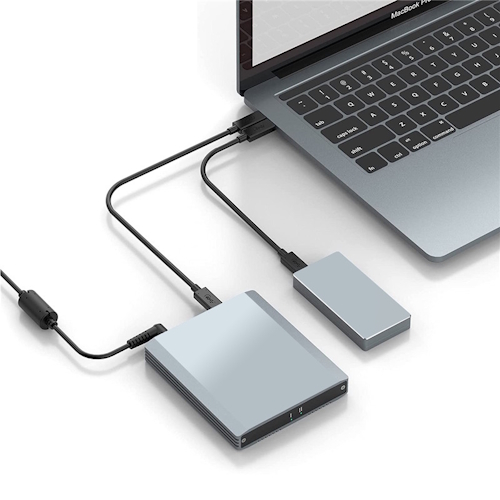
To understand the real-world capabilities of modern interfaces, it’s useful to compare their practical performance. USB 4.0 offers speeds comparable to internal NVMe drives from previous generations, while SATA 3 SSDs lag significantly behind in bandwidth, though they remain an affordable solution for everyday tasks.
Table 2: Speed Comparison – USB4 vs. SATA SSD vs. NVMe SSD
| Interface / Drive | Theoretical Speed | Real-World Speed (Read/Write) | Key Characteristics |
|---|---|---|---|
| USB 4.0 (USB4 Gen3×2) | 40 Gbps (5000 MB/s) | up to 3800–4000 MB/s | USB-C only, backward compatible, supports Thunderbolt 4 |
| SATA 3 SSD | 6 Gbps (750 MB/s) | ~550 MB/s | Maximum for SATA interface, limited by bus bandwidth |
| NVMe SSD (PCIe 3.0 ×4) | 32 Gbps (4000 MB/s) | up to 3500 MB/s | Connects directly to PCIe, low latency |
| NVMe SSD (PCIe 4.0 ×4) | 64 Gbps (8000 MB/s) | up to 7000 MB/s | Current standard for high-performance PCs |
It’s important to understand that the real speed of USB4 drives depends not only on the interface but also on the controller used, the type of flash memory, and the effectiveness of thermal management. Under sustained loads, some models may throttle their speed due to overheating, so passive or active cooling becomes an important factor for professional use.
Top USB 4.0 Drives in 2026: Quality and Speed Leaders
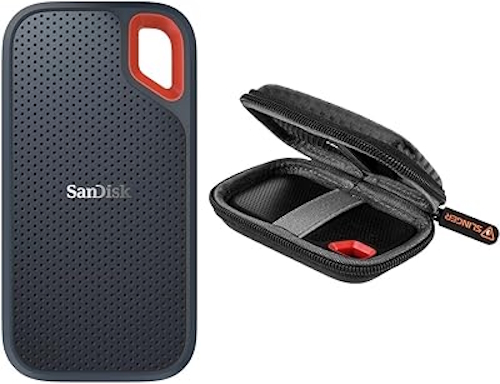
Among the USB4 drives available in 2026, several models stand out for offering the best combination of speed, reliability, and features.
-
SanDisk Extreme Pro USB4 retains its recognizable design with a rubberized body and adds support for the USB4 standard, delivering speeds up to 3800 megabytes per second for both reads and writes. The device features an aluminum frame and a silicone sleeve that protects against shocks and vibration, plus it has an IP65 rating, ensuring dust and water resistance for field use.
-
Another notable player is the ADATA SE920, which gained attention for its engineering solution featuring active cooling. When you press down on the drive’s casing, a built-in micro-fan slides out, reducing temperatures by about 10% compared to passively cooled competitors. Its speed performance reaches 3800 MB/s read and 3700 MB/s write, and the five-year manufacturer warranty confirms its high reliability.
-
LaCie Rugged SSD4, owned by Seagate, offers speeds up to 4000 megabytes per second along with maximum data protection thanks to a rugged case with a rubber bumper, protection against drops from two meters, and resistance to pressure up to one ton, making it ideal for on-location shoots and extreme conditions.
Choosing the best USB4 drive in 2026 depends on your specific needs. For mobile professionals working with video, models with robust protection and stable write speeds are preferable. For office use and backups, more affordable solutions where price-to-capacity ratio is the priority are sufficient. All leading manufacturers continue to improve both the hardware, implementing more efficient controllers and thermal solutions, and the software for drive management and data protection.

I’m Irina Petrova-Levin, a graduate of the Moscow Technical University of Communications and Informatics (MTUCI), where I earned my degree in Information Technology. My professional journey has been deeply rooted in JavaScript, PHP, and Python, driven by a profound fascination with how modern technology shapes our everyday lives. I strive to explain complex processes in a clear and accessible way without ever sacrificing accuracy or missing the core of the matter.
Now based in Dallas since 2019, my work reflects a unique synthesis of Eastern European engineering depth and the dynamic American tech mindset. This blend allows me to bridge two distinct technological traditions.
My goal is to deconstruct the real mechanisms behind the devices and systems we use daily. In my articles, I aim to deliver information that is not only practical and structured but also reveals the hidden logic of how our world actually works.